MCP Apps: Bringing Interactive User Interfaces to Agentic Workflows
By Vien Hong · October 2026
An AI assistant can find the right information and still make it awkward to use.
Ask for a report, and you get a table. Want to narrow the date range? Send another message. Compare two categories? Ask again. By the third or fourth adjustment, you may wish the answer had come with a few familiar controls.
Chat works well for explaining what you want. It’s less convenient when every filter, selection and correction requires another exchange.
MCP Apps gives developers a way to bring those interactions into the conversation itself.
What MCP Apps adds
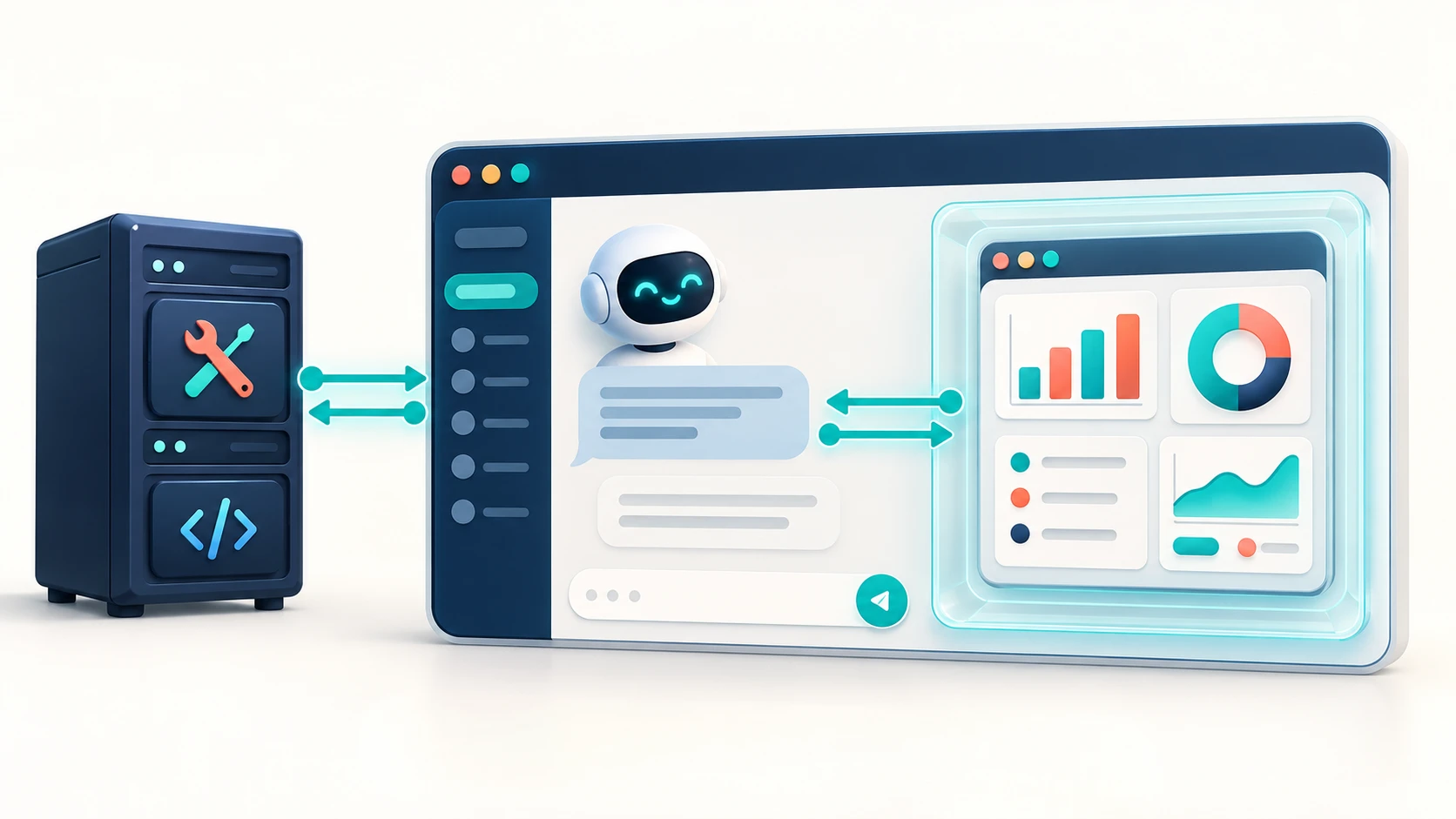
The Model Context Protocol connects AI applications with external tools and data. MCP Apps extends that connection to include interactive interfaces: a tool can provide a view that a compatible host displays inside the conversation.
The MCP maintainers announced MCP Apps on January 26, 2026, as the protocol’s first official extension. It builds on earlier work from MCP-UI and OpenAI’s Apps SDK to establish a shared approach for embedded interfaces. Official announcement.
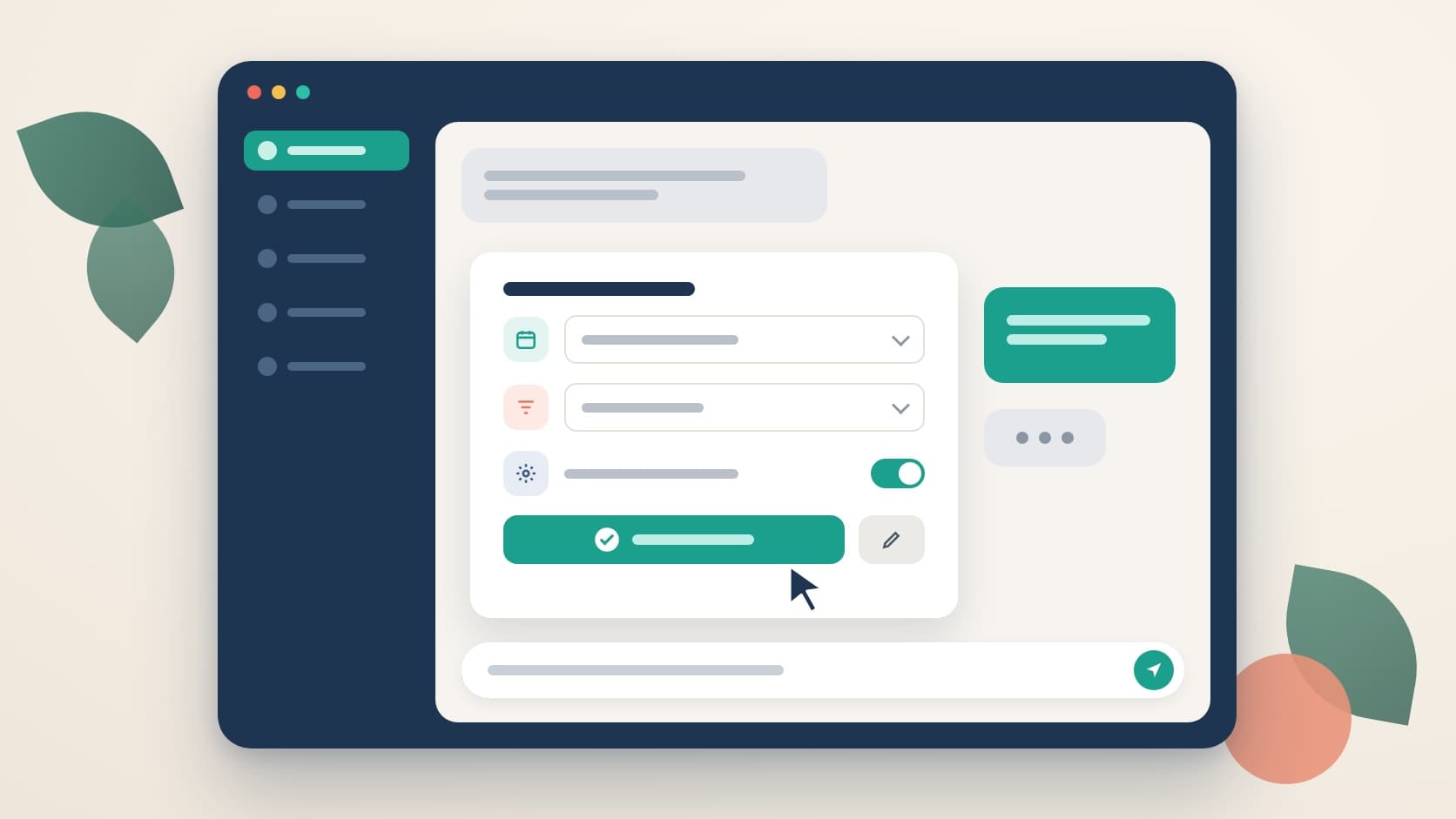
For someone using an assistant, the difference is practical. A report can arrive with filters. A configuration task can open a form. A document review can present a preview with controls beside the relevant content.
The assistant helps initiate the task, and the interface gives the person a direct way to work with the result.
Some tasks need more than a written answer
Consider a research assistant that finds twenty useful documents.
A written summary helps explain what those documents contain. But comparing publication dates, selecting a few sources and opening individual passages would be easier in a list with sorting and selection controls.
The same applies to an analytics workflow. Someone might ask why activity fell last month, then want to inspect a particular week or compare categories. A chart with a date selector lets them explore those questions without repeatedly describing the view they want.
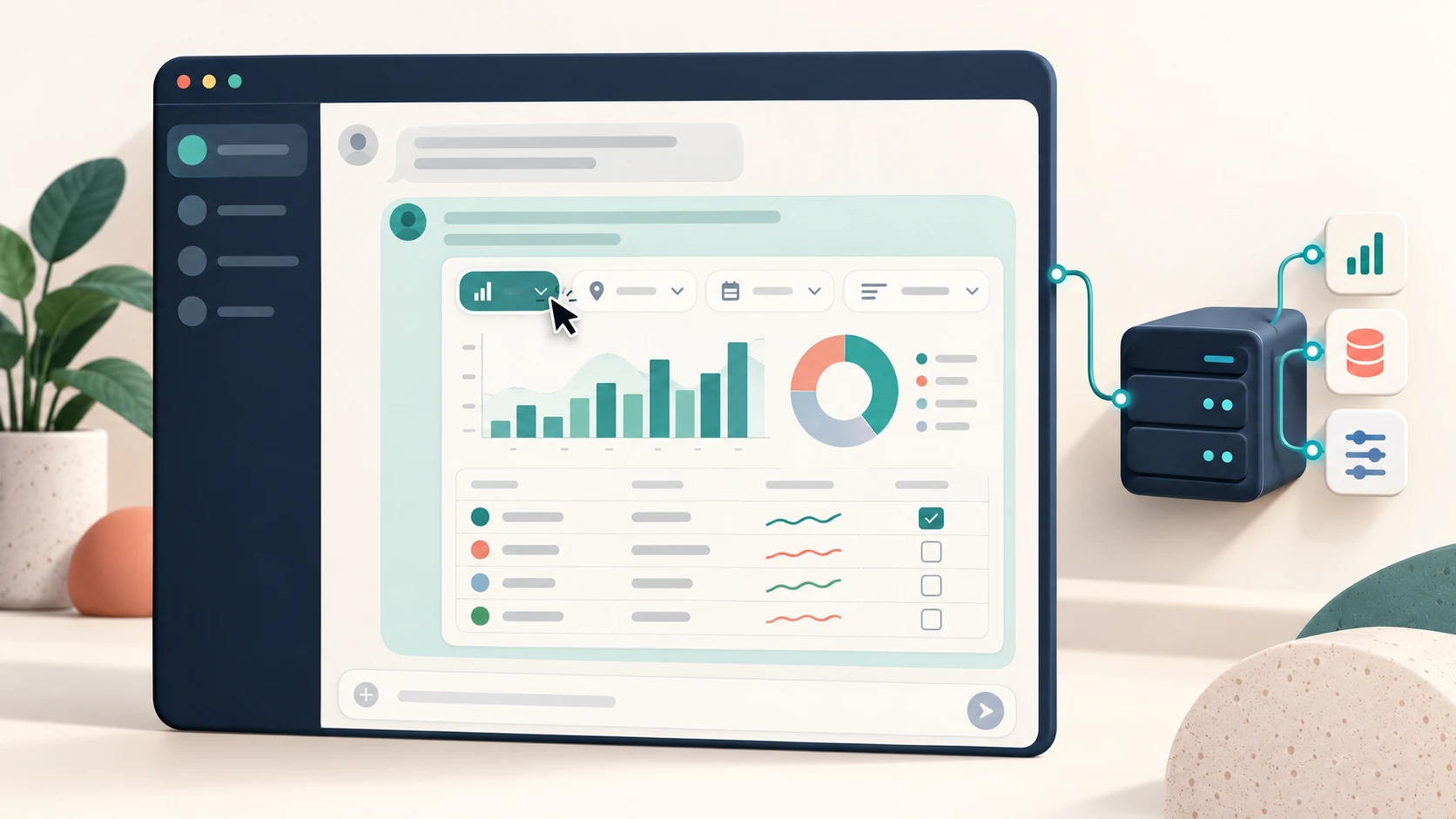
These are proposed uses, rather than claims about a particular implementation. They illustrate where an embedded interface could help: tasks that continue after the assistant delivers its initial answer.
There’s still a place for plain text. If someone asks for a definition, opening a panel would probably add friction. The interface earns its place when it makes the next action easier.
How the interface reaches the conversation
MCP Apps involves three parts: the server, the host application and the embedded view.
The server exposes tools and supplies UI resources. The host is the application running the conversation. The view is the interface the person interacts with.
A tool identifies its UI resource through _meta.ui.resourceUri, pointing to a resource under the ui:// URI scheme. A supporting host retrieves that resource and renders it in a sandboxed iframe. It then delivers tool inputs and results to the view.
Communication between the view and host uses JSON-RPC over the browser’s postMessage mechanism. Requests from the interface pass through the host, which mediates access to server tools. Architecture and lifecycle documentation.
That arrangement matters because the interface remains connected to the workflow. It can do more than display a static result.
What developers can build with it
The official @modelcontextprotocol/ext-apps SDK includes an App class for connecting an embedded view to its host.
Several APIs describe the main interactions:
| API | What it does |
|---|---|
app.ontoolresult | Handles tool results delivered to the view |
app.callServerTool() | Requests a server tool call through the host |
app.sendMessage() | Sends a message to the conversation |
app.updateModelContext() | Updates context available to the model in later turns |
Updating model context does not itself trigger an immediate response. That distinction helps developers decide when an interaction should update the interface and when it should return to the conversation. App API reference.
For example, changing a chart’s display settings might only affect the view. Selecting a set of documents for analysis could warrant passing that selection back to the assistant.
Those choices deserve attention. An interface that reports every minor interaction to the conversation could become as distracting as the message exchanges it was meant to reduce.
Decide what the model needs to see
A useful interface may need far more data than the assistant needs to reason about.
A table could contain hundreds of records, while the next conversational step only requires a summary and the user’s selection. Sending all of it to the model can add unnecessary context.
Developers should check how their target host handles tool-result fields. In particular, structuredContent should not be treated as a universal guarantee that data stays hidden from the model. The MCP Python SDK distinguishes model-readable content, structured results and client-side metadata carried in _meta. Tool-result data channels.
MCP Apps also supports tools whose visibility is limited to the app. The documentation demonstrates these for tasks such as polling and retrieving large data in chunks. MCP Apps implementation patterns.
The practical approach is to decide what the view needs, what the model needs and when those needs change. Then verify that behavior in the intended host before claiming any reduction in token use.
Make consequential actions easy to review
An embedded interface creates a useful place for human review.
Imagine an assistant preparing changes to a shared document. A preview could show the proposed edits and let someone approve individual changes before saving. A configuration form could present the selected environment and settings together before submission.

That is a design opportunity, not an automatic safety guarantee. A clear confirmation screen still depends on server-side validation, authorization and reliable handling of repeated requests.
MCP Apps provides boundaries around the embedded view, including sandboxing and declared network permissions. Developers still need to design the underlying actions carefully. Security documentation.
The interface should help people understand what will happen. It should also make failures visible enough that they know whether an action succeeded or needs attention.
Keep the text response useful
An MCP App depends on a host that supports the extension. Teams should verify the exact client and version their users rely on before making an embedded view essential to a workflow.
The documentation describes UI support as progressive enhancement: hosts advertise their capabilities, and servers can adapt their behavior. A useful text response remains important when the interface cannot be shown. Host capabilities and fallback behavior.
That fallback also encourages better tool design. The result should still explain what happened, even without its visual presentation.
Start with one awkward interaction
The best starting point is an existing task where people repeatedly ask the assistant to rearrange or narrow a result.
Add a small view to that tool. Keep its scope narrow enough to test with real users. The official SDK repository includes examples that can help establish the connection before investing in a larger interface.
Then observe what happens after the first result appears. Can someone find the information they need? Do they understand the available controls? Can they complete the task without returning to chat to explain every small adjustment?
That is where MCP Apps becomes interesting. It gives developers room to combine conversation with familiar interface design, choosing whichever interaction best serves the next step.